
How to Use Tee on Linux

What is tee?
tee on Linux is a command-line tool, it reads from the standard input and is the capability of writing results to the terminal's standard output and files at the same time. This essentially lets you store and view (both at the same time) the output at any time.
How to use it?
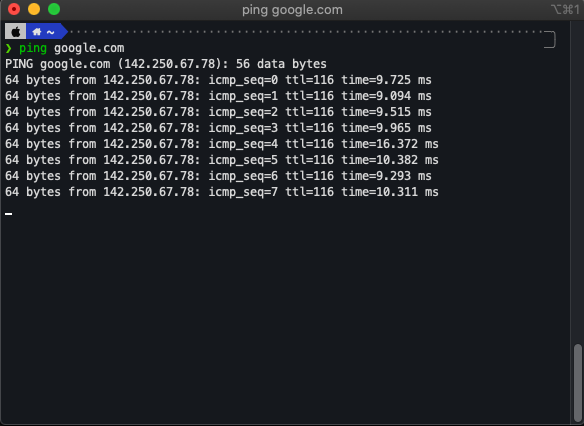
Let's illustrate the use of tee with a simple example. We can use a command to ping [google.com](http://google.com)
ping google.com
The output should be displayed only on your screen which is standard output (STDOUT):
Now, let's try and write the output to a file:
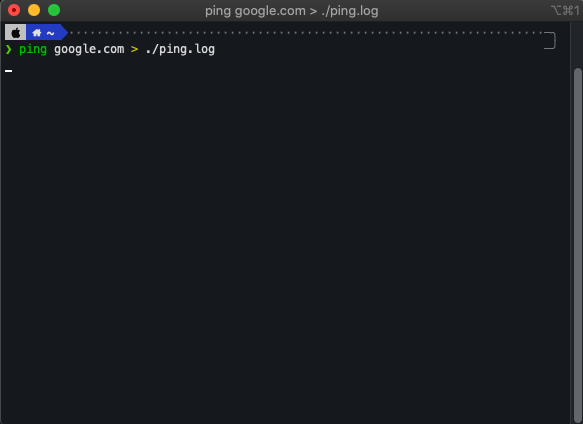
ping google.com > ~/ping.log
Now, your screen will pretty much be blank and the output will be writing to the file mention on the path ~/ping.log:
# ~/ping.log
PING google.com (142.250.67.78): 56 data bytes
64 bytes from 142.250.67.78: icmp_seq=0 ttl=116 time=12.489 ms
64 bytes from 142.250.67.78: icmp_seq=1 ttl=116 time=9.979 ms
64 bytes from 142.250.67.78: icmp_seq=2 ttl=116 time=10.664 ms
64 bytes from 142.250.67.78: icmp_seq=3 ttl=116 time=8.961 ms
64 bytes from 142.250.67.78: icmp_seq=4 ttl=116 time=9.497 ms
64 bytes from 142.250.67.78: icmp_seq=5 ttl=116 time=9.856 ms
64 bytes from 142.250.67.78: icmp_seq=6 ttl=116 time=10.083 ms
64 bytes from 142.250.67.78: icmp_seq=7 ttl=116 time=9.735 ms
64 bytes from 142.250.67.78: icmp_seq=8 ttl=116 time=9.066 ms
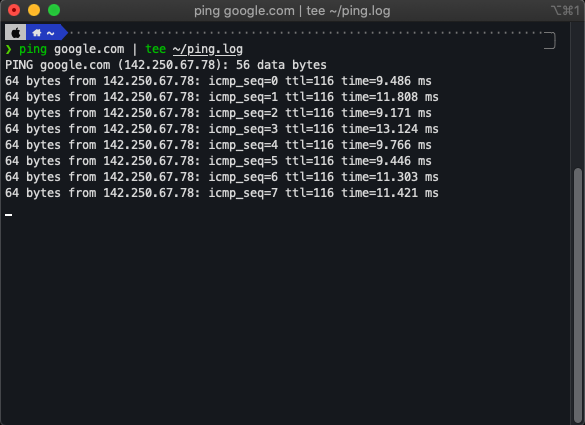
Now, we will tee to do both at the same exact time:
ping google.com | tee ~/ping.log
The output this time around will be written to the screen as well as the file:
# ~/ping.log
PING google.com (142.250.67.78): 56 data bytes
64 bytes from 142.250.67.78: icmp_seq=0 ttl=116 time=9.486 ms
64 bytes from 142.250.67.78: icmp_seq=1 ttl=116 time=11.808 ms
64 bytes from 142.250.67.78: icmp_seq=2 ttl=116 time=9.171 ms
64 bytes from 142.250.67.78: icmp_seq=3 ttl=116 time=13.124 ms
64 bytes from 142.250.67.78: icmp_seq=4 ttl=116 time=9.766 ms
64 bytes from 142.250.67.78: icmp_seq=5 ttl=116 time=9.446 ms
64 bytes from 142.250.67.78: icmp_seq=6 ttl=116 time=11.303 ms
64 bytes from 142.250.67.78: icmp_seq=7 ttl=116 time=11.421 ms
64 bytes from 142.250.67.78: icmp_seq=8 ttl=116 time=9.201 ms
64 bytes from 142.250.67.78: icmp_seq=9 ttl=116 time=9.372 ms
64 bytes from 142.250.67.78: icmp_seq=10 ttl=116 time=10.267 ms
So, essentially, the command has the following format:
tee [OPTION]... [FILE]...
And quite plainly the man page explains it as:
The tee utility copies standard input to standard output, making a copy in zero or more files. The output is unbuffered.
More Options
As you might have stumbled on the man page already, there are more options that can be fed to our tee command. Some of them are:
Append
By default tee command overwrites the file. You can append to the file by using the -a option as shown below:
ping google.com | tee -a ~/ping.log
Write to Multiple Files
You can write to multiple files by just specifying the names or directories of the files:
ping google.com | tee -a file1 file2 file3
Conclusion
I think we can all agree that tee is one delightful Linux command. The tool definitely is quite easy to use and has a little-to-no learning curve. But you can always view its man page at any time to know further information.
Happy Grizzly Coding! 🐻

Related Posts

How to create an SSH tarpit
A quick an easy way get back at those obnoxious hacker that target to gain SSH access to your Linux server. This article will show you how to trap the hackers in a SSH tarpit.

How to use Screen on Linux to Detach and Reattach your Terminal
Screen is this awesome software tool in Linux that provides you the ability to spring-up and use multiple shell sessions from a single ssh session. Screen essentially acts as a terminal multiplexer emulator that is packed with features.

How to install OpenVPN using Docker
In this article we will be seeing how easy it is to get started with your own OpenVPN server.